The Quick Start Guide is the built in "Getting Started" feature of the MyConstruct.
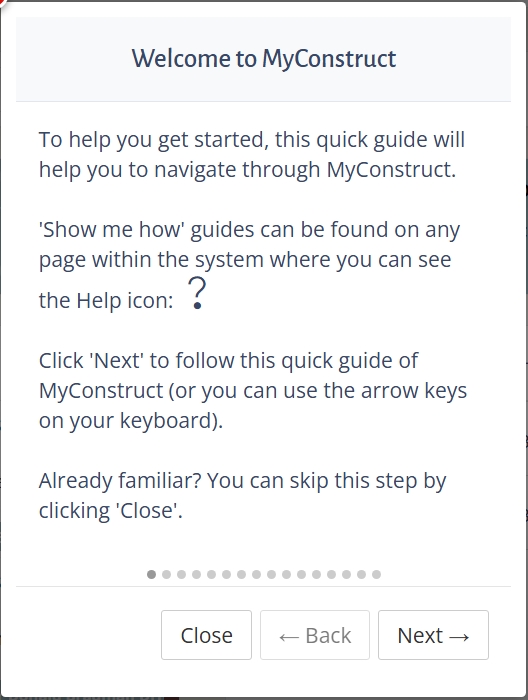
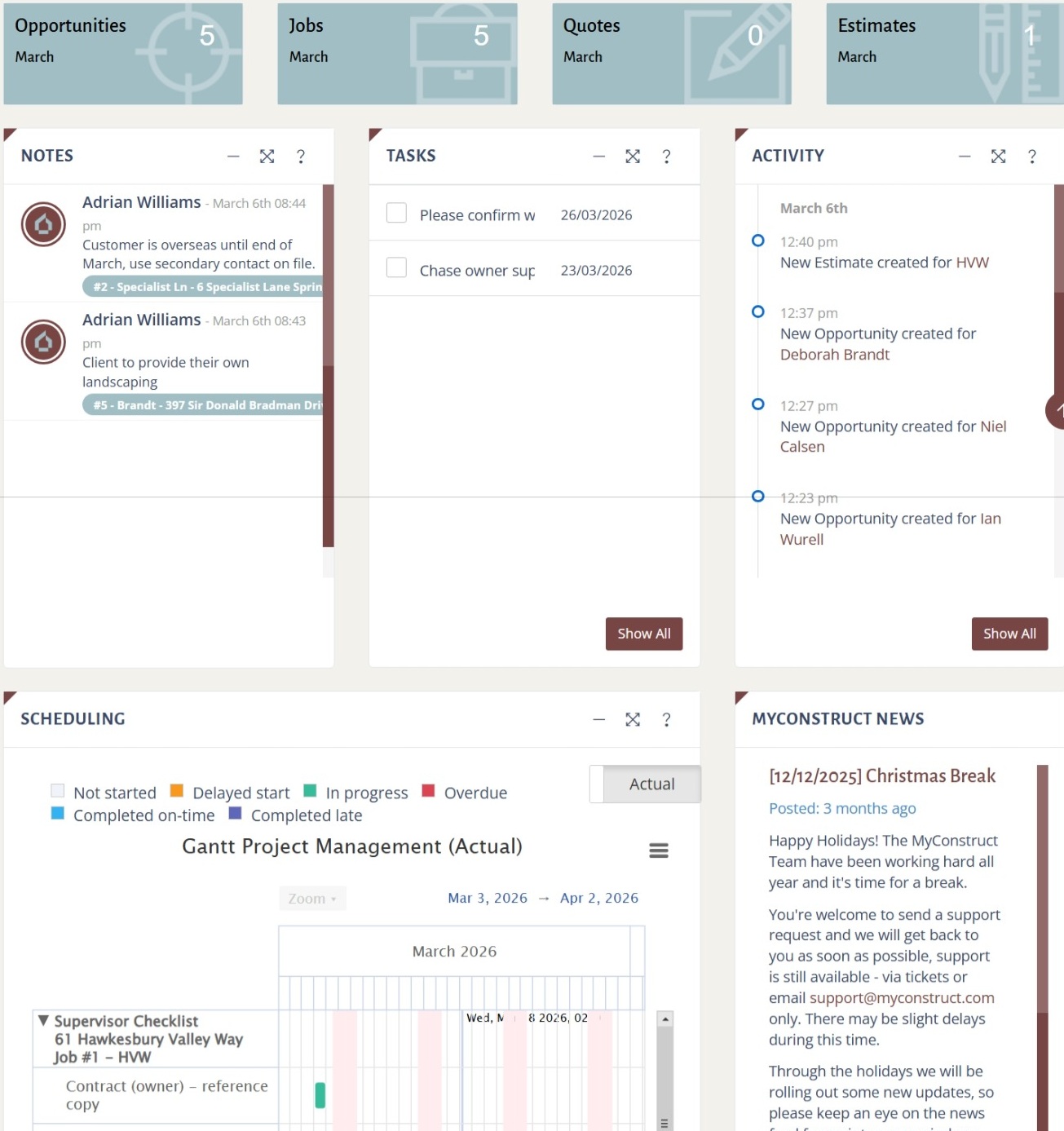
A new box will pop up once the button has been pressed labeled "Welcome to MyConstruct" seen in the image above, this gives an overall summary of the Guide, by clicking next the guide or Close to exit. The breadcrumbs at the bottom of the image are a short hand method to indicate the number of pages within the guide, the dot being on the far left suggests that this is page one. You can also use the Arrow keys on your keyboard to move through the steps in the guide.
2. Brief description
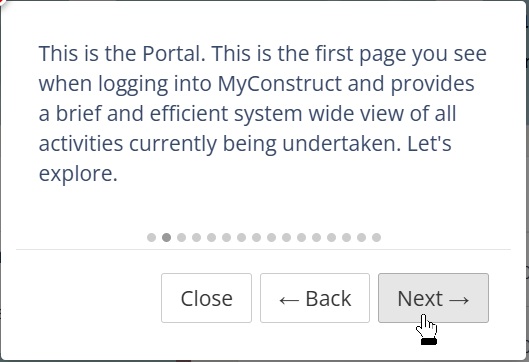
The focus will shift over to the center of the screen for a brief description on how the guide works.
3. Info buttons
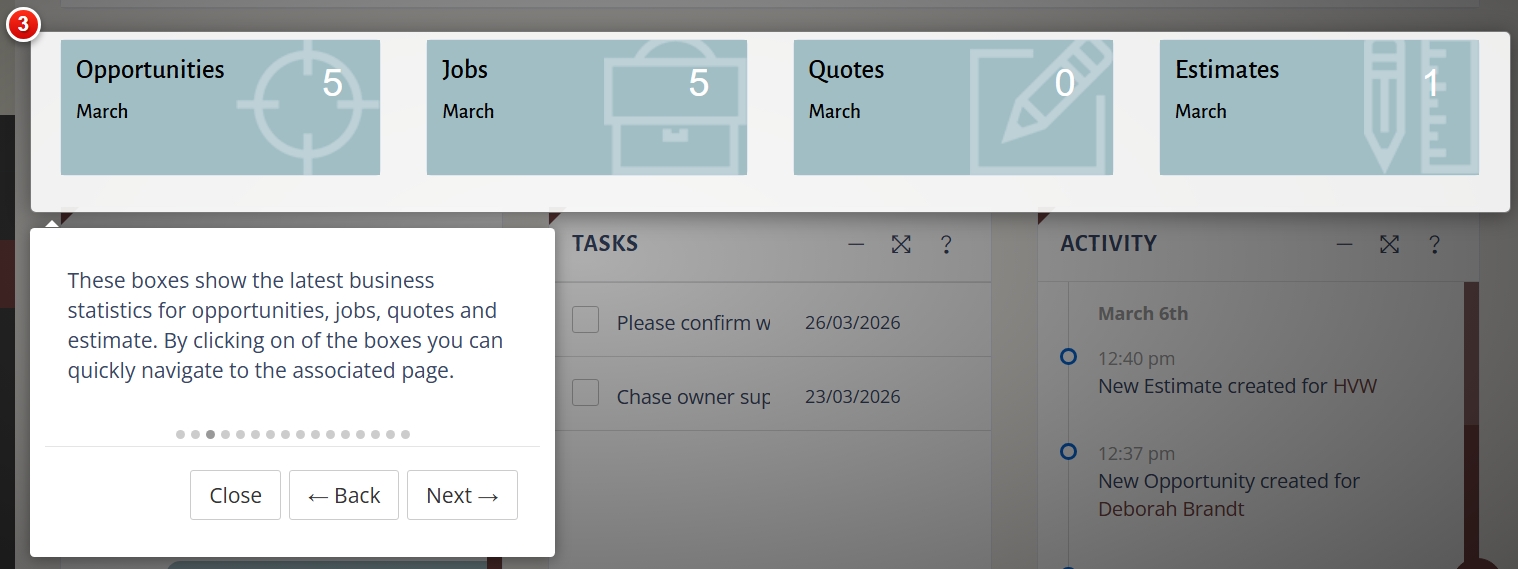
The focus will shift over to the top informational buttons which contain business stats and act as a form of navigation to each of the key areas the data is being read from.
4. Notes
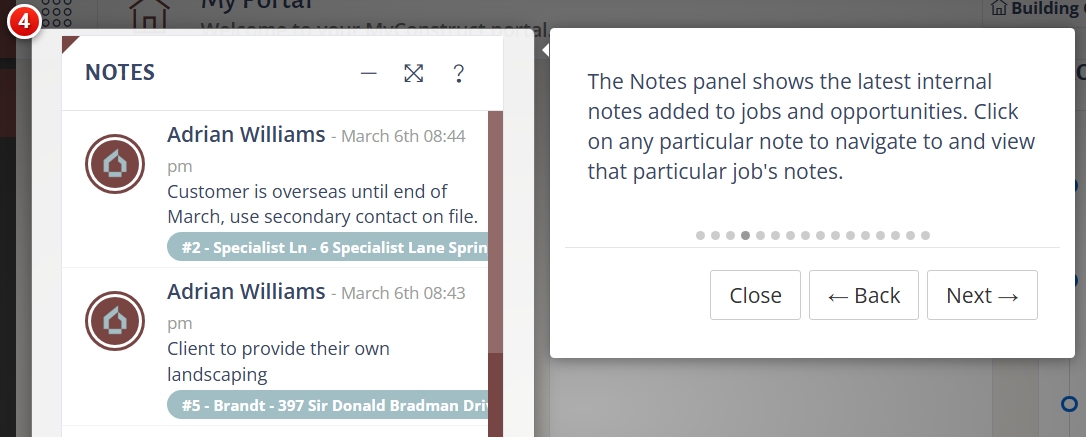
The Notes panel shows the latest internal notes for jobs and opportunities.
5. Tasks
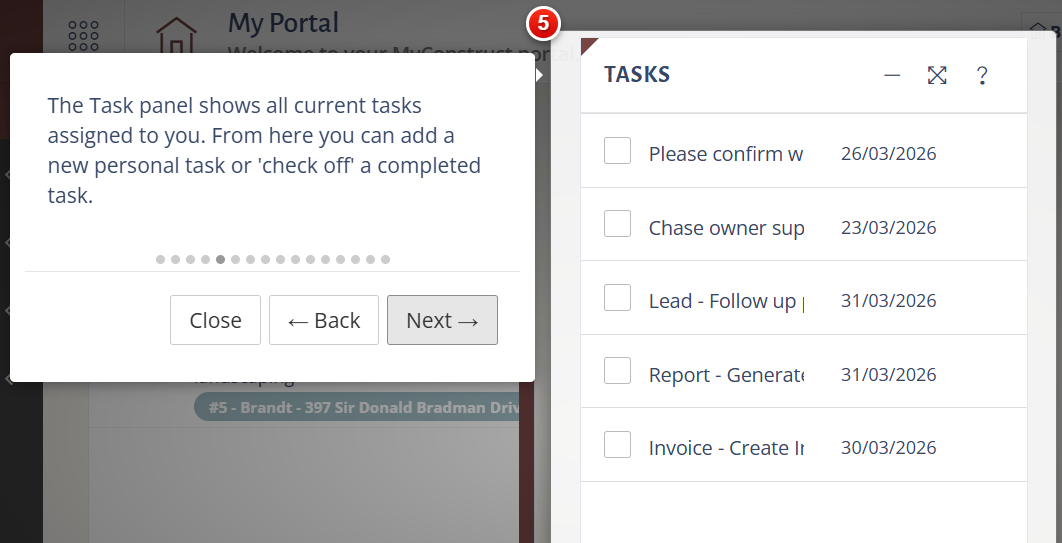
The Tasks panel displays all current tasks assigned to you. These tasks are managed through the Tasks menu on the left-hand side and can be assigned to various checklist items.
6. Activity
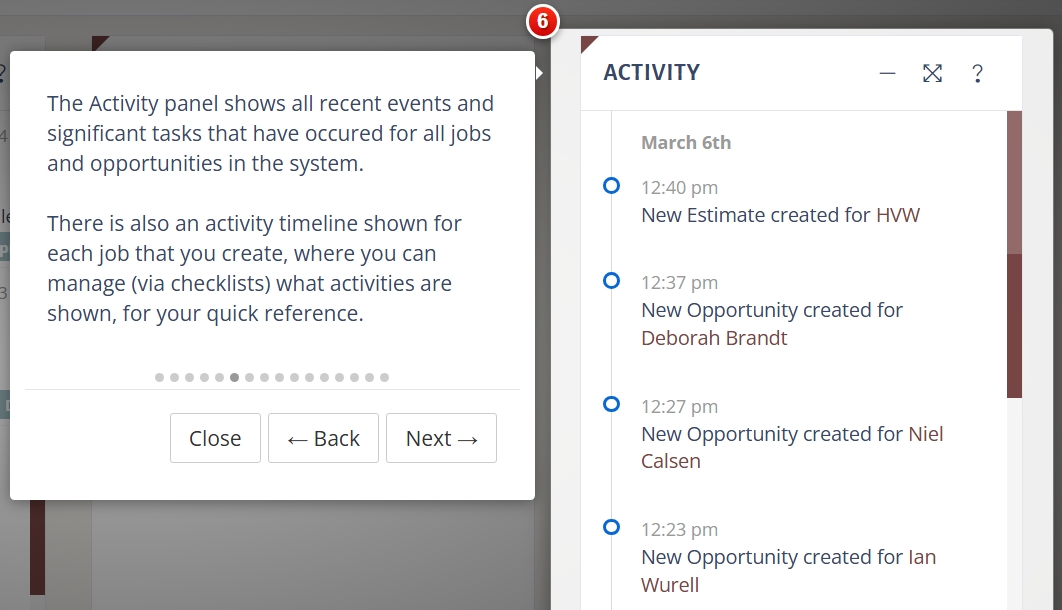
The Activity panel shows all recent events and significant tasks that have occurred for all jobs and opportunities in the system.
7. Schedule
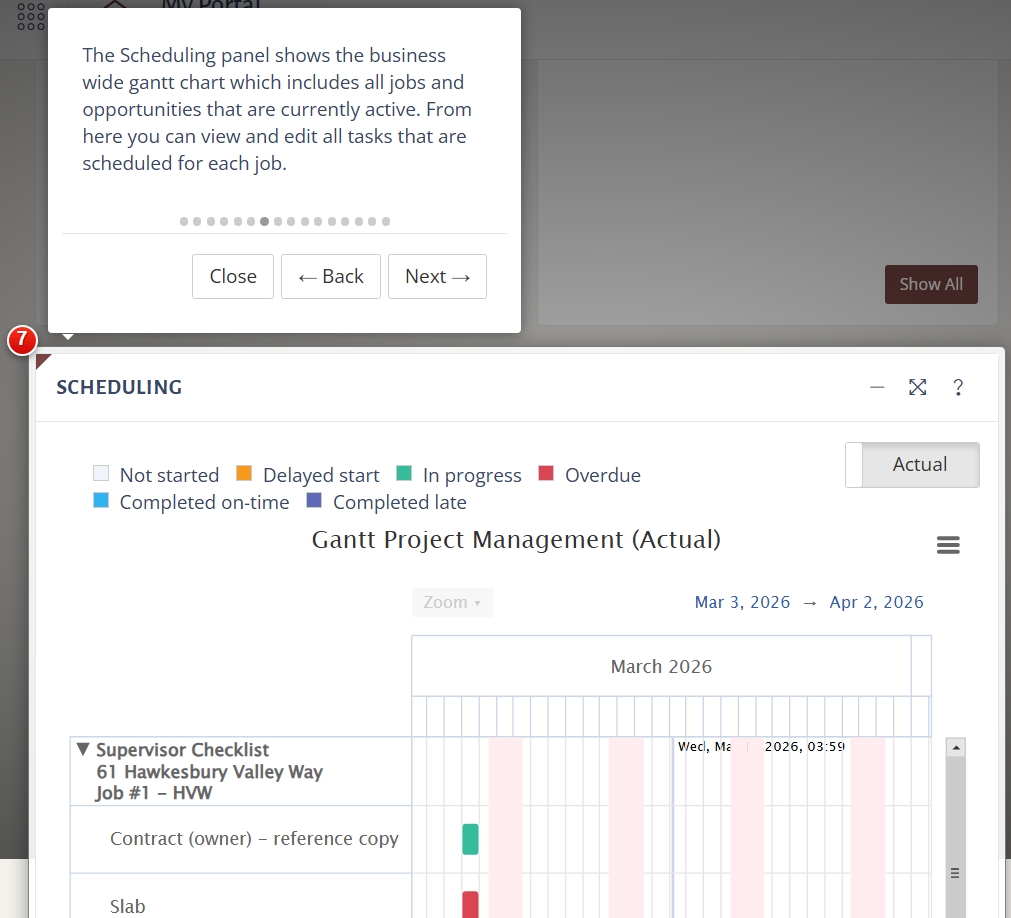
The Scheduling panel shows the business wide Gantt chart which includes all jobs and opportunities that are currently active. It helps you easily see what’s scheduled and when tasks are planned.
News
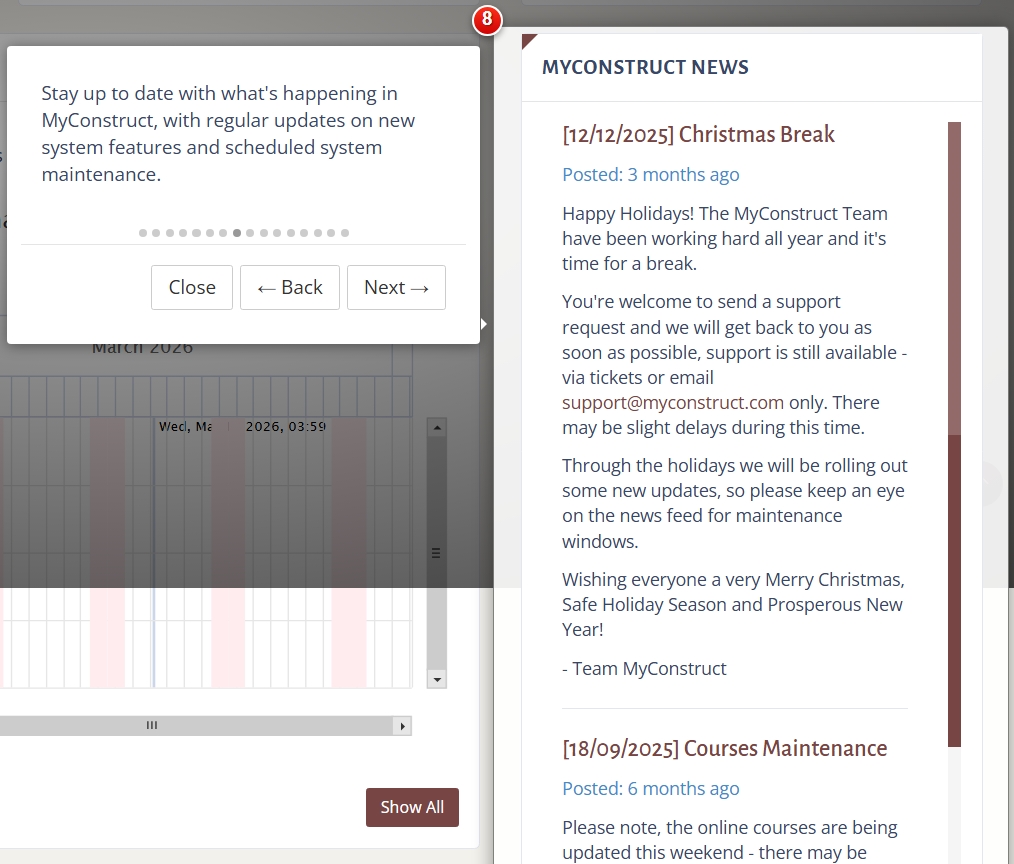
Stay up to date with what's happening in MyConstruct, with regular updates on new system features and scheduled system maintenance.
Menu
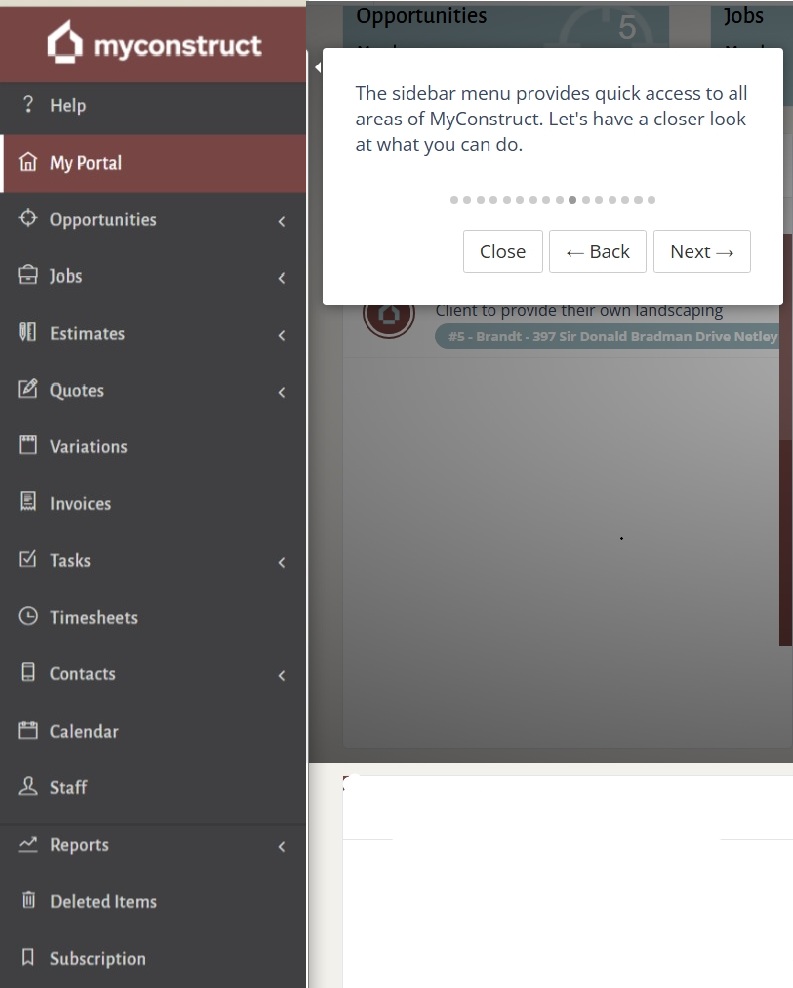
The focus will shift over to the Main Menu with a description shown for each section in the menu.
Our guide will continue within each of the sections of MyConstruct by simply clicking the "?" within any of them.
Completion
The guide ends with a prompt to contact the MyConstruct team for further assistance.
Remember: This guide and all of the other guides are available via clicking the "Show me how" button in the help menus throughout MyConstruct.

Comments
0 comments
Please sign in to leave a comment.